My Japanese Blog Link 1
My Japanese Blog Link 2
1. Mer environment(i586) on AMD Brazos(include SSSE3).
(Past Post Related Article 1, Related Article 2)
Running UX on AMD Brazos.
UX are Nemo Mobile and Plasma Active Two.
Add repository Mer Core PRERELEASE 0.20120315.0.1 .
After Mesa updated, rendering by llvmpipe.
2. Mer environment on Intel nonSSSE3 CPU(Pentium D(Presler)).
(Past Post Related Article)
Mer Core repository architecture change to i486 from i586.
Running UX on Intel nonSSSE3 CPU.
UX are Nemo Mobile and Plasma Active Two.
GPU is NVIDIA GeForce.
Use Mer Core PRERELEASE 0.20120315.0.1 .
After Mesa updated, rendering by llvmpipe.
Appendix. UX change way.
(Past Post Related Article)
1. Link change .desktop file.
For example
# cd /usr/share/xsessions/
# ln -sf X-MEEGO-HS.desktop default.desktop
2. uxlaunch service restart
# systemctl restart uxlaunch.service
Showing posts with label MeeGo. Show all posts
Showing posts with label MeeGo. Show all posts
Tuesday, March 13, 2012


Friday, March 9, 2012
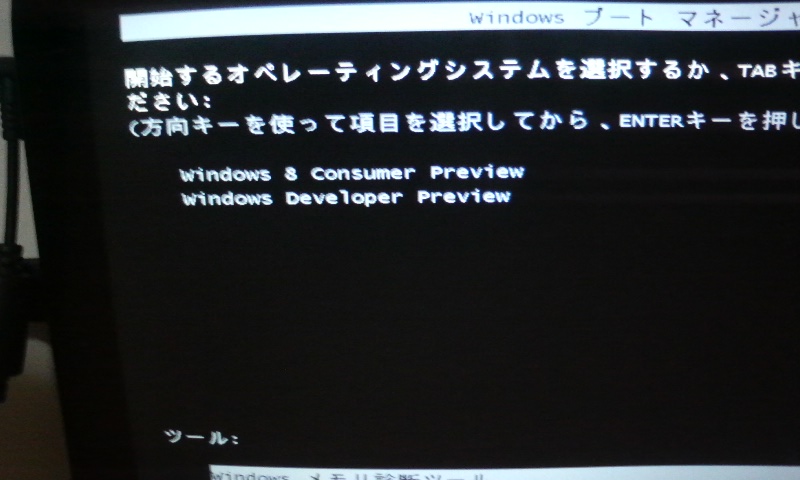
Multiboot Bootloader on ExoPC Photos
My Japanese Blog Link 1
My Japanese Blog Link 2
My Japanese Blog Link 3
My Japanese Wiki Link
Multiboot environment on ExoPC.
(Windows 8 Developer Preview, Windows 8 Consumer Preview, Mer, MeeGo 1.2, Android-x86)
Multiple Bootloader.
This environment use Windows Bootloader and EXTLINUX of MeeGo and Mer.
Power on.
1. MeeGo Bootloader
2. Mer Bootloader or Windows Bootloader
3. Windows bootloader or return to MeeGo Bootloader
Installation order of the OS.
1. Windows 8 CP
2. Windows 8 DP
3. MeeGo 1.2
4. Mer
5. Android-x86 put into MeeGo 1.2 /boot partition.
MeeGo Bootloader


Mer Bootloader

Windows Bootloader
After Windows 8 CP and DP installed, EasyBCD 2.1.2 installed into Windows 8 CP.
After EasyBCD 2.1.2 used, classic style.

My Japanese Blog Link 2
My Japanese Blog Link 3
My Japanese Wiki Link
Multiboot environment on ExoPC.
(Windows 8 Developer Preview, Windows 8 Consumer Preview, Mer, MeeGo 1.2, Android-x86)
Multiple Bootloader.
This environment use Windows Bootloader and EXTLINUX of MeeGo and Mer.
Power on.
1. MeeGo Bootloader
2. Mer Bootloader or Windows Bootloader
3. Windows bootloader or return to MeeGo Bootloader
Installation order of the OS.
1. Windows 8 CP
2. Windows 8 DP
3. MeeGo 1.2
4. Mer
5. Android-x86 put into MeeGo 1.2 /boot partition.


After Windows 8 CP and DP installed, EasyBCD 2.1.2 installed into Windows 8 CP.
After EasyBCD 2.1.2 used, classic style.
Thursday, February 16, 2012
Add Plasma Active Two to Nemo Mobile on ExoPC
My Japanese Blog Link 1
My Japanese Blog Link 2
My Japanese Blog Link 3
I added Plasma Active Two to Nemo Mobile.
This way is similar to "Add Nemo Mobile to MeeGo 1.3 Snapshot".
(This Blog Related Article)
I used Nemo Mobile 2012-02-09 img.
1. Install Nemo Mobile.
2. Add Plasma Active Repository.
I referred to Repository from Plasma Active Devel 2012-02-09 (Mer) img .ks file.
Set to /etc/zypp/repos.d/*.repo .
Nemo Mobile and Plasma Active use some same repository.
3. Install Plasma Active Packages.
I referred to Installed Packages form Plasma Active Devel 2012-02-09 (Mer) img pkgs.txt file.
# zypper ref
# zypper in plasma-active
(And Dependent Packages 200 in total.)
Next Add Packages.
# zypper in ConsoleKit alsa-plugins-pulseaudio alsa-utils bangarang boost-filesystem boost-serialization boost-system contour dbus-python encfs glib-networking gnutls gst-plugins-good iodbc kde-runtime-desktoptheme kde-runtime-netattach kde-runtime-newstuff kde-runtime-solid kde-runtime-sounds kdialog kmix less libdeclarative-multimedia libkipi libkipi8 libqtdeclarative4-gestures lskat libsoup libtasn1 pulseaudio-policy-enforcement pygobject2 rlog strace xorg-x11-drv-fbdev
4. Create .desktop File.
I referred to Repository from Plasma Active Devel 2012-02-09 (Mer) img .ks file.
I created /usr/share/xsessions/plasma-active.desktop .
[Desktop Entry]
Version=1.0
Name=Plasma Active
Exec=/usr/bin/startactive
Type=Application
5. Default UX Setting.
Link change .desktop file.
# cd /usr/share/xsessions/
# ln -sf plasma-active.desktop default.desktop
Before Set: default.desktop -> X-MEEGO-HS.desktop (Nemo Mobile)
After Set: default.desktop -> plasma-active.desktop
6. Reboot OS or Kill "X Server" Process.
7. Running Plasma Active Two.
My Japanese Blog Link 2
My Japanese Blog Link 3
I added Plasma Active Two to Nemo Mobile.
This way is similar to "Add Nemo Mobile to MeeGo 1.3 Snapshot".
(This Blog Related Article)
I used Nemo Mobile 2012-02-09 img.
1. Install Nemo Mobile.
2. Add Plasma Active Repository.
I referred to Repository from Plasma Active Devel 2012-02-09 (Mer) img .ks file.
Set to /etc/zypp/repos.d/*.repo .
Nemo Mobile and Plasma Active use some same repository.
3. Install Plasma Active Packages.
I referred to Installed Packages form Plasma Active Devel 2012-02-09 (Mer) img pkgs.txt file.
# zypper ref
# zypper in plasma-active
(And Dependent Packages 200 in total.)
Next Add Packages.
# zypper in ConsoleKit alsa-plugins-pulseaudio alsa-utils bangarang boost-filesystem boost-serialization boost-system contour dbus-python encfs glib-networking gnutls gst-plugins-good iodbc kde-runtime-desktoptheme kde-runtime-netattach kde-runtime-newstuff kde-runtime-solid kde-runtime-sounds kdialog kmix less libdeclarative-multimedia libkipi libkipi8 libqtdeclarative4-gestures lskat libsoup libtasn1 pulseaudio-policy-enforcement pygobject2 rlog strace xorg-x11-drv-fbdev
4. Create .desktop File.
I referred to Repository from Plasma Active Devel 2012-02-09 (Mer) img .ks file.
I created /usr/share/xsessions/plasma-active.desktop .
[Desktop Entry]
Version=1.0
Name=Plasma Active
Exec=/usr/bin/startactive
Type=Application
5. Default UX Setting.
Link change .desktop file.
# cd /usr/share/xsessions/
# ln -sf plasma-active.desktop default.desktop
Before Set: default.desktop -> X-MEEGO-HS.desktop (Nemo Mobile)
After Set: default.desktop -> plasma-active.desktop
6. Reboot OS or Kill "X Server" Process.
7. Running Plasma Active Two.
Monday, February 6, 2012
Mer and MeeGo on ExoPC Photos
Multiboot Mer and MeeGo on ExoPC.
Mer (Nemo Mobile, Plasma Active Two, XBMC, Razor-qt, XFCE).
UX is on same Mer environment. Change UX and run it.
Nemo Mobile

Plasma Active Two


XBMC on Plasma Active

Razor-qt


XFCE
Wayland Compositor on XFCE


MeeGo 1.2 (Netbook UX, IVI UX).
Netbook UX and IVI UX runs at the same time.
Netbook UX

IVI UX

Netbook UX Menu on IVI UX

Mer (Nemo Mobile, Plasma Active Two, XBMC, Razor-qt, XFCE).
UX is on same Mer environment. Change UX and run it.


MeeGo 1.2 (Netbook UX, IVI UX).
Netbook UX and IVI UX runs at the same time.


Thursday, February 2, 2012
Continuation Nemo Mobile on Intel Atom E6xx
Previous Article
My Japanese Blog Link
I retried Nemo Mobile on Intel Atom E6xx.
1. Nemo Mobile install.
2. Add Repository MeeGo 1.2.0 to Nemo Mobile.
3. Packages install
# zypper ref
# zypper in zypper in emgd-bin emgd-gui kernel-adaptation-intel-automotive
xorg-x11-server-Xorg-setuid yum
4. Zypper Repository Setting to YUM
# zypper lr -e /etc/yum.repos.d/nemo.repo
New content here
5. Packages Downgrade
# yum downgrade xorg-x11-drv-evdev xorg-x11-server
xorg-x11-server-common xorg-x11-server-Xorg-setuid
(Version Change X Server 1.10 to 1.9 (from MeeGo 1.2.0))
No downgrade Mesa Packages.
(Version Leave Mesa 7.11 (from Mer Core))
6. Setting File
/etc/X11/xorg.conf
New content here
7. Runlevel Setting
This setting forgot to write in previous article.
Edit /etc/inittab
id:3:initdefault:
to
id:5:initdefault:
Default Boot Runlevel 3.
Runlevel 3 to Runlevel 5.
Maybe, after installing kernel-adaptation-intel-automotive.
or
Boot Option "5" add.
or
CUI Login.
# uxlaunch
8. Boot Nemo Mobile. Use kernel-adaptation-intel-automotive.
Nemo Mobile Running on Intel Atom E6xx.
Appendix.
Cannot use other tty (CUI) in Runlevel 5.
Not autostart sshd.
Maybe, after installing kernel-adaptation-intel-automotive.
Manual start
# /usr/sbin/sshd
But output Error Messages : GSS Relation.
/etc/ssh/sshd_config
GSS relatation comment out.
Manual started sshd OK.
My Japanese Blog Link
I retried Nemo Mobile on Intel Atom E6xx.
1. Nemo Mobile install.
2. Add Repository MeeGo 1.2.0 to Nemo Mobile.
3. Packages install
# zypper ref
# zypper in zypper in emgd-bin emgd-gui kernel-adaptation-intel-automotive
xorg-x11-server-Xorg-setuid yum
4. Zypper Repository Setting to YUM
# zypper lr -e /etc/yum.repos.d/nemo.repo
New content here
5. Packages Downgrade
# yum downgrade xorg-x11-drv-evdev xorg-x11-server
xorg-x11-server-common xorg-x11-server-Xorg-setuid
(Version Change X Server 1.10 to 1.9 (from MeeGo 1.2.0))
No downgrade Mesa Packages.
(Version Leave Mesa 7.11 (from Mer Core))
6. Setting File
/etc/X11/xorg.conf
New content here
7. Runlevel Setting
This setting forgot to write in previous article.
Edit /etc/inittab
id:3:initdefault:
to
id:5:initdefault:
Default Boot Runlevel 3.
Runlevel 3 to Runlevel 5.
Maybe, after installing kernel-adaptation-intel-automotive.
or
Boot Option "5" add.
or
CUI Login.
# uxlaunch
8. Boot Nemo Mobile. Use kernel-adaptation-intel-automotive.
Nemo Mobile Running on Intel Atom E6xx.
Appendix.
Cannot use other tty (CUI) in Runlevel 5.
Not autostart sshd.
Maybe, after installing kernel-adaptation-intel-automotive.
Manual start
# /usr/sbin/sshd
But output Error Messages : GSS Relation.
/etc/ssh/sshd_config
GSS relatation comment out.
Manual started sshd OK.
Friday, January 6, 2012
Nemo Mobile Testing on Intel Atom E6xx
My Japanese Blog Link 1
My Japanese Blog Link 2
I tried Nemo Mobile on Intel Atom E6xx.
I used Nemo Mobile Testing .img file.
Pattern 1
This way is the same as used on VirtualBox.
(This Blog Related Article)
Pattern 2
1. Nemo Mobile install.
2. Add Repository "MeeGo 1.2.0" and "MeeGo 1.2.0 Updates".
To get emgd-bin, kernel-adaptation-intel-automotive and others.
I copied zypper repository settings(/etc/zypp/repos.d/*.repo)
from installed MeeGo 1.2.0 environment.
3. Packages install and replace.
# zypper in kernel-adaptation-intel-automotive
After Version 2.6.37.6-18.
From MeeGo 1.2.0 Updates Repository.
Dependent packages install too.
# zypper in emgd-bin emgd-gui
Replase Packages: mesa-libEGL mesa-libGLESv2 to emgd-bin.
After Version emgd-bin 2032.
From MeeGo 1.2.0 Updates Repository.
# zypper in xorg-x11-server-Xorg-setuid
(Package Replace: xorg-x11-server-Xorg to xorg-x11-server-Xorg-setuid)
# zypper in yum
After, I used "yum downgrade".
From MeeGo 1.2.0 Repository.
EMGD Support Version: Xorg 1.9, Mesa 7.9
Mer Core include Xorg 1.10, Mesa 7.11.
Necessary Version Downgrade.
# zypper lr -e /etc/yum.repos.d/nemo.repo
Export Repository Settings from Zypper to YUM.
# yum downgrade xorg* mesa*
Xorg and Mesa Packages Downgrade.
From MeeGo 1.2.0 Repository.
4. Xorg Setting
/etc/X11/xorg.conf is not in Nemo Mobile.
I copied /etc/X11/xorg.conf from installed MeeGo 1.2.0 and EMGD environment.
5. OS Reboot. kernel-adaptation-intel-automotive boot.
6. Nemo Mobile Running on Intel Atom E6xx.
Appendix
Mouse Cursor Visible.
File edit: /etc/sysconfig/uxlaunch
"xopts=-nocursor" comment out or remove.
My Japanese Blog Link 2
I tried Nemo Mobile on Intel Atom E6xx.
I used Nemo Mobile Testing .img file.
Pattern 1
This way is the same as used on VirtualBox.
(This Blog Related Article)
Pattern 2
1. Nemo Mobile install.
2. Add Repository "MeeGo 1.2.0" and "MeeGo 1.2.0 Updates".
To get emgd-bin, kernel-adaptation-intel-automotive and others.
I copied zypper repository settings(/etc/zypp/repos.d/*.repo)
from installed MeeGo 1.2.0 environment.
3. Packages install and replace.
# zypper in kernel-adaptation-intel-automotive
After Version 2.6.37.6-18.
From MeeGo 1.2.0 Updates Repository.
Dependent packages install too.
# zypper in emgd-bin emgd-gui
Replase Packages: mesa-libEGL mesa-libGLESv2 to emgd-bin.
After Version emgd-bin 2032.
From MeeGo 1.2.0 Updates Repository.
# zypper in xorg-x11-server-Xorg-setuid
(Package Replace: xorg-x11-server-Xorg to xorg-x11-server-Xorg-setuid)
# zypper in yum
After, I used "yum downgrade".
From MeeGo 1.2.0 Repository.
EMGD Support Version: Xorg 1.9, Mesa 7.9
Mer Core include Xorg 1.10, Mesa 7.11.
Necessary Version Downgrade.
# zypper lr -e /etc/yum.repos.d/nemo.repo
Export Repository Settings from Zypper to YUM.
# yum downgrade xorg* mesa*
Xorg and Mesa Packages Downgrade.
From MeeGo 1.2.0 Repository.
4. Xorg Setting
/etc/X11/xorg.conf is not in Nemo Mobile.
I copied /etc/X11/xorg.conf from installed MeeGo 1.2.0 and EMGD environment.
5. OS Reboot. kernel-adaptation-intel-automotive boot.
6. Nemo Mobile Running on Intel Atom E6xx.
Appendix
Mouse Cursor Visible.
File edit: /etc/sysconfig/uxlaunch
"xopts=-nocursor" comment out or remove.
MeeGo 1.2.0 Netbook on Intel Atom E6xx
My Japanese Blog Link
I tried MeeGo 1.2.0 Netbook on Intel Atom E6xx.
I used MeeGo 1.2.0 Netbook .img file.
1. MeeGo 1.2.0 Netbook install.
2. Packages install and replace.
# zypper in kernel-adaptation-intel-automotive
After Version 2.6.37.6-18.
# zypper in emgd-bin emgd-gui
Replase Packages: mesa-libEGL mesa-libGLESv2 to emgd-bin.
After Version emgd-bin 2032.
# zypper in xorg-x11-server-Xorg-setuid
3. Xorg Setting
/etc/X11/xorg.conf
Option "ALL/1/General/PortOrder" "42000"
edit to
Option "ALL/1/General/PortOrder" "24000"
4. Reboot. kernel-adaptation-intel-automotive boot.
5. MeeGo 1.2.0 Netbook Running on Intel Atom E6xx.
Notice
After, All packages updated.
Did not display Netbook UX.
Appendix
Netbook to Handset tried.
(This Blog Related Article)
Handset UX displayed.
I tried MeeGo 1.2.0 Netbook on Intel Atom E6xx.
I used MeeGo 1.2.0 Netbook .img file.
1. MeeGo 1.2.0 Netbook install.
2. Packages install and replace.
# zypper in kernel-adaptation-intel-automotive
After Version 2.6.37.6-18.
# zypper in emgd-bin emgd-gui
Replase Packages: mesa-libEGL mesa-libGLESv2 to emgd-bin.
After Version emgd-bin 2032.
# zypper in xorg-x11-server-Xorg-setuid
3. Xorg Setting
/etc/X11/xorg.conf
Option "ALL/1/General/PortOrder" "42000"
edit to
Option "ALL/1/General/PortOrder" "24000"
4. Reboot. kernel-adaptation-intel-automotive boot.
5. MeeGo 1.2.0 Netbook Running on Intel Atom E6xx.
Notice
After, All packages updated.
Did not display Netbook UX.
Appendix
Netbook to Handset tried.
(This Blog Related Article)
Handset UX displayed.
Thursday, January 5, 2012
MeeGo 1.2.0 IVI on Intel Atom E6xx
My Japanese Blog Link
I tried MeeGo 1.2.0 IVI on Intel Atom E6xx.
I used MeeGo 1.2.0 IVI .img file.
Reference site:Installed MeeGo IVI 1.2.0.99 to TX-50(Kimitake's blog)
1. MeeGo 1.2.0 IVI install.
Either "Text install" and "GUI install".
2.MeeGo 1.2.0 Update (After 1.2.0 Update 4)
# zypper dup
All Packages Updated.
Necessary Update:
kernel-adaptation-intel-automotive 2.6.37.6-18 (included 1.2.0 Update 4)
kernel-adaptation-intel-automotive 2.6.37.6-19 (included 1.2.0 Update 5)
emgd-bin 2032 (Version 1.8) (included after 1.2.0 Update 4)
3. Xorg Setting
/etc/X11/xorg.conf
Option "ALL/1/General/PortOrder" "42000"
edit to
Option "ALL/1/General/PortOrder" "24000"
They mean 42000:LVDS and 24000:sDVOB(D-sub).
4.OS reboot
5.MeeGo 1.2.0 IVI UX Running on Intel Atom E6xx.
Appendix
Add Package: EMGD GUI Setting Package
# zypper in emgd-gui
I tried MeeGo 1.2.0 IVI on Intel Atom E6xx.
I used MeeGo 1.2.0 IVI .img file.
Reference site:Installed MeeGo IVI 1.2.0.99 to TX-50(Kimitake's blog)
1. MeeGo 1.2.0 IVI install.
Either "Text install" and "GUI install".
2.MeeGo 1.2.0 Update (After 1.2.0 Update 4)
# zypper dup
All Packages Updated.
Necessary Update:
kernel-adaptation-intel-automotive 2.6.37.6-18 (included 1.2.0 Update 4)
kernel-adaptation-intel-automotive 2.6.37.6-19 (included 1.2.0 Update 5)
emgd-bin 2032 (Version 1.8) (included after 1.2.0 Update 4)
3. Xorg Setting
/etc/X11/xorg.conf
Option "ALL/1/General/PortOrder" "42000"
edit to
Option "ALL/1/General/PortOrder" "24000"
They mean 42000:LVDS and 24000:sDVOB(D-sub).
4.OS reboot
5.MeeGo 1.2.0 IVI UX Running on Intel Atom E6xx.
Appendix
Add Package: EMGD GUI Setting Package
# zypper in emgd-gui
Thursday, December 15, 2011
MeeGo 1.3 Snapshot UX Change
My Japanese Blog "MeeGo" Tag Link
My Japanese Blog "Mer" Tag Link
I tried MeeGo 1.3 UX change.
I used MeeGo 1.3 Snapshot (MeeGo 1.2.80 Netbook).
For example, add Nemo into MeeGo 1.3.
1. Install MeeGo 1.2.80 Netbook.
2. Remove MeeGo 1.2.80 Original Repository file(/etc/zypp/repos.d/*.repo).
3. Add Nemo Repository to MeeGo 1.3.
I referred to Nemo Repository from Nemo img .ks file
and Installed Nemo environment zypper repository settings(/etc/zypp/repos.d/*.repo).
4. Install Nemo Packages.
# zypper ref
# zypper in -t pattern nemo* mtf* intel*
5. Create .desktop file.
I created /usr/share/xsessions/X-MEEGO-HS.desktop
(I referred to X-MEEGO-HS.desktop from Nemo img .ks file and Installed Nemo environment.)
/usr/share/xsessions/x-meego-nb.desktop is MeeGo 1.2.80 Netbook UX.
Described "Exec=/usr/bin/mcompositor" in X-MEEGO-HS.desktop.
Described "Exec=/usr/bin/mutter --sm-disable" in x-megoo-nb.desktop.
Similar described MeeGo 1.2.
/etc/sysconfig/uxlaunch
session=/usr/bin/mcompositor
session=/usr/bin/mutter --sm-disable
(This Blog Related Article.)
6. Link change .desktop file.
# cd /usr/share/xsessions/
# ln -sf X-MEEGO-HS.desktop default.desktop
Before Set: default.desktop -> x-meego-nb.desktop
After Set: default.desktop -> X-MEEGO-HS.desktop
7. Reboot OS or Kill "X Window" Process.
8. Running Nemo Handset UX.
Other UX.
XBMC(XBMC.desktop), Cordia HD(x-hildon.desktop) etc...
My Japanese Blog "Mer" Tag Link
I tried MeeGo 1.3 UX change.
I used MeeGo 1.3 Snapshot (MeeGo 1.2.80 Netbook).
For example, add Nemo into MeeGo 1.3.
1. Install MeeGo 1.2.80 Netbook.
2. Remove MeeGo 1.2.80 Original Repository file(/etc/zypp/repos.d/*.repo).
3. Add Nemo Repository to MeeGo 1.3.
I referred to Nemo Repository from Nemo img .ks file
and Installed Nemo environment zypper repository settings(/etc/zypp/repos.d/*.repo).
4. Install Nemo Packages.
# zypper ref
# zypper in -t pattern nemo* mtf* intel*
5. Create .desktop file.
I created /usr/share/xsessions/X-MEEGO-HS.desktop
(I referred to X-MEEGO-HS.desktop from Nemo img .ks file and Installed Nemo environment.)
/usr/share/xsessions/x-meego-nb.desktop is MeeGo 1.2.80 Netbook UX.
Described "Exec=/usr/bin/mcompositor" in X-MEEGO-HS.desktop.
Described "Exec=/usr/bin/mutter --sm-disable" in x-megoo-nb.desktop.
Similar described MeeGo 1.2.
/etc/sysconfig/uxlaunch
session=/usr/bin/mcompositor
session=/usr/bin/mutter --sm-disable
(This Blog Related Article.)
6. Link change .desktop file.
# cd /usr/share/xsessions/
# ln -sf X-MEEGO-HS.desktop default.desktop
Before Set: default.desktop -> x-meego-nb.desktop
After Set: default.desktop -> X-MEEGO-HS.desktop
7. Reboot OS or Kill "X Window" Process.
8. Running Nemo Handset UX.
Other UX.
XBMC(XBMC.desktop), Cordia HD(x-hildon.desktop) etc...
Monday, December 12, 2011
MeeGo 1.2.0 IVI on Intel Atom Pinetrail
My Japanese Blog Link 1
My Japanese Blog Link 2
I tried MeeGo 1.2.0 IVI on Intel Atom Pinetrail(Example:N4xx).
I use MeeGo 1.2.0 IVI .img file.
MeeGo 1.2.0 IVI .img include EMGD.
EMGD is a thing for Intel Atom E6xx.
EMGD cannot use Intel Atom Pinetrail.
1. MeeGo 1.2.0 IVI install.
Either "Text install" and "GUI install".
2. Packages install and replace.
# zypper in kernel-adaptation-pinetrail
# zypper in mesa-libEGL mesa-libGLESv2
Replase Packages: emgd-bin to mesa-libEGL mesa-libGLESv2
# zypper in mesa-dri-i915-driver mesa-dri-i965-driver
3. Reboot. kernel-adaptation-pinetrail boot.
4. Running MeeGo 1.2.0 IVI on Intel Atom Pinetrail.
Appendix
Cedartrail MeeGo 1.2 Snapshot include kernel-adaptation-pc.
kernel-adaptation-pc is replace the kernel-adaptation-pinetrail.
kernel-adaptation-pc include same name package in MeeGo 1.3 Snapshot and Nemo.
My Japanese Blog Link 2
I tried MeeGo 1.2.0 IVI on Intel Atom Pinetrail(Example:N4xx).
I use MeeGo 1.2.0 IVI .img file.
MeeGo 1.2.0 IVI .img include EMGD.
EMGD is a thing for Intel Atom E6xx.
EMGD cannot use Intel Atom Pinetrail.
1. MeeGo 1.2.0 IVI install.
Either "Text install" and "GUI install".
2. Packages install and replace.
# zypper in kernel-adaptation-pinetrail
# zypper in mesa-libEGL mesa-libGLESv2
Replase Packages: emgd-bin to mesa-libEGL mesa-libGLESv2
# zypper in mesa-dri-i915-driver mesa-dri-i965-driver
3. Reboot. kernel-adaptation-pinetrail boot.
4. Running MeeGo 1.2.0 IVI on Intel Atom Pinetrail.
Appendix
Cedartrail MeeGo 1.2 Snapshot include kernel-adaptation-pc.
kernel-adaptation-pc is replace the kernel-adaptation-pinetrail.
kernel-adaptation-pc include same name package in MeeGo 1.3 Snapshot and Nemo.
Sunday, December 4, 2011
MeeGo 1.3 Snapshot and Nemo Installation
MeeGo 1.3 Snapshot (Example:1.2.80, 1.2.90)
and Nemo (MeeGo 1.3 CE) install.
.img file write USB Memory.
OS boot from USB Memory.
Boot menu select Installation.
Install Wizard
(In Nemo, Installation Wized maseage is mixed and confused in the Boot messages.)
Wizard 1:
1. Internal Disk Drive (HDD, SSD)
2. OS boot Used USB Memory
3. CANCEL
Wizard 2:
1. Free space install
2. Full disk install
3. Cancel
Wizard 3:
Partition Configuration Check.
(Partition Cannot edit.)
Execution Select: Yes or No.
Wizard 4:
Auto Installation.
Auto Reboot.
OS boot.
and Nemo (MeeGo 1.3 CE) install.
.img file write USB Memory.
OS boot from USB Memory.
Boot menu select Installation.
Install Wizard
(In Nemo, Installation Wized maseage is mixed and confused in the Boot messages.)
Wizard 1:
1. Internal Disk Drive (HDD, SSD)
2. OS boot Used USB Memory
3. CANCEL
Wizard 2:
1. Free space install
2. Full disk install
3. Cancel
Wizard 3:
Partition Configuration Check.
(Partition Cannot edit.)
Execution Select: Yes or No.
Wizard 4:
Auto Installation.
Auto Reboot.
OS boot.
MeeGo and Nemo on VirtualBox Settings
MeeGo and Nemo(MeeGo 1.3 CE) use same settings on VirtualBox.
(This Blog Related Article)
Hardware
Required CPU:Included SSSE3
(Example:Intel Core2, Intel Atom, AMD Fusion APU(Bobcat Core))
".img" extension rename to ".iso" extension for "VirtualBox 4.x".
VirtualBox Setting
General:
Basic:
OS:Linux
Version:fedora
System:
Processor:
Extended Features:Enable PAE/EX:ON
Display:
Video:
Extended Features:Enable 3D Acceleration:ON
Storage:
SATA Controller:Use host I/O cache:ON
Network:
Adapter1:
Attached to:NAT or Bridged Adapter
Other Setting is Default.
Installed OS Settings
(This Blog Related Article)
# zypper in xorg-x11-server-Xorg-setuid
or
# chmod +s /usr/bin/Xorg
Other Setting is a little different for each UX.
But UX Slow.
glxinfo output.
OpenGL renderer string: Software Rasterizer
This way is the same as used on
the real machine with not supported GPU (Geforce, Radeon etc)).
(This Blog Related Article)
Hardware
Required CPU:Included SSSE3
(Example:Intel Core2, Intel Atom, AMD Fusion APU(Bobcat Core))
".img" extension rename to ".iso" extension for "VirtualBox 4.x".
VirtualBox Setting
General:
Basic:
OS:Linux
Version:fedora
System:
Processor:
Extended Features:Enable PAE/EX:ON
Display:
Video:
Extended Features:Enable 3D Acceleration:ON
Storage:
SATA Controller:Use host I/O cache:ON
Network:
Adapter1:
Attached to:NAT or Bridged Adapter
Other Setting is Default.
Installed OS Settings
(This Blog Related Article)
# zypper in xorg-x11-server-Xorg-setuid
or
# chmod +s /usr/bin/Xorg
Other Setting is a little different for each UX.
But UX Slow.
glxinfo output.
OpenGL renderer string: Software Rasterizer
This way is the same as used on
the real machine with not supported GPU (Geforce, Radeon etc)).
Friday, November 25, 2011
Nemo Testing on VirtualBox
My Japanese Blog Link
I tried Nemo on VirtualBox.
1. Nemo install.
2. Runlevel 3 boot.
3. Root login.
4. Install Packages.
# zypper in mesa-dri-swrast-driver xorg-x11-drv-vesa xorg-x11-server-Xorg-setuid
(Package Replace: xorg-x11-server-Xorg to xorg-x11-server-Xorg-setuid)
5. Mouse Cursor Visible.
File edit: /etc/sysconfig/uxlaunch
"xopts=-nocursor" comment out or remove.
6. Nemo UX boot.
# uxlaunch
or
OS Reboot and Runlevel 5 boot.
7. Nemo UX Running.
I tried Nemo on VirtualBox.
1. Nemo install.
2. Runlevel 3 boot.
3. Root login.
4. Install Packages.
# zypper in mesa-dri-swrast-driver xorg-x11-drv-vesa xorg-x11-server-Xorg-setuid
(Package Replace: xorg-x11-server-Xorg to xorg-x11-server-Xorg-setuid)
5. Mouse Cursor Visible.
File edit: /etc/sysconfig/uxlaunch
"xopts=-nocursor" comment out or remove.
6. Nemo UX boot.
# uxlaunch
or
OS Reboot and Runlevel 5 boot.
7. Nemo UX Running.
Thursday, October 27, 2011
MeeGo 1.2.1 Snapshot Tablet to Handset
My Japanese Blog "MeeGo" Tag Link
My Japanese Blog Link
MeeGo 1.2.1(1.2.0.90, 1.2.0.99, 1.2.1)
Change to Handset UX from Tablet UX.
1. MeeGo Tablet UX (Pinetrail) install.
2. Preremove package
# yum erase meego-ux-compositor
Conflict Package
meego-ux-compositor(included Tablet) and meegotouch-compositor(included Handset).
3. Package Group install
# yum groupinstall "MeeGo Touch" "MeeGo Handset*"
Handset Group
(MeeGo Handset, MeeGo Handset Desktop, MeeGo Handset Applications)
4. Package replace
# yum erase meegotouch-compositor
# yum install meego-ux-compositor
(meego-ux-compositor may be stable than meegotouch-compositor.)
5. Related Tablet UX Packages Remove.
#yum erase meego-ux-daemon meego-app-* meego-ux-settings
(dependent packages remove too.)
6. Reboot
7. MeeGo Handset UX Runnning.
My Japanese Blog Link
MeeGo 1.2.1(1.2.0.90, 1.2.0.99, 1.2.1)
Change to Handset UX from Tablet UX.
1. MeeGo Tablet UX (Pinetrail) install.
2. Preremove package
# yum erase meego-ux-compositor
Conflict Package
meego-ux-compositor(included Tablet) and meegotouch-compositor(included Handset).
3. Package Group install
# yum groupinstall "MeeGo Touch" "MeeGo Handset*"
Handset Group
(MeeGo Handset, MeeGo Handset Desktop, MeeGo Handset Applications)
4. Package replace
# yum erase meegotouch-compositor
# yum install meego-ux-compositor
(meego-ux-compositor may be stable than meegotouch-compositor.)
5. Related Tablet UX Packages Remove.
#yum erase meego-ux-daemon meego-app-* meego-ux-settings
(dependent packages remove too.)
6. Reboot
7. MeeGo Handset UX Runnning.
Wednesday, October 12, 2011
MeeGo 1.2.1 Snapshot Netbook to XBMC
My Japanese Blog "MeeGo" Tag Link
MeeGo 1.2.1 Snapshot (After 1.2.0.90.3)
This way is similar to "Netbook to IVI".
(This Blog Related Article)
1. Netbook UX install.
2. TV Group install.
# yum groupinstall "MeeGo TV*"
TV Group(MeeGo TV, MeeGo TV Applications)
3. Package remove
# yum erase meego-menus
dependent packages remove too.
4. Reboot
5. XBMC Running.
MeeGo 1.2.1 Snapshot (After 1.2.0.90.3)
This way is similar to "Netbook to IVI".
(This Blog Related Article)
1. Netbook UX install.
2. TV Group install.
# yum groupinstall "MeeGo TV*"
TV Group(MeeGo TV, MeeGo TV Applications)
3. Package remove
# yum erase meego-menus
dependent packages remove too.
4. Reboot
5. XBMC Running.
MeeGo 1.2 Netbook to Handset
My Japanese Blog "MeeGo" Tag Link
My Japanese Blog Link 1
My Japanese Blog Link 2
MeeGo 1.2(1.2.0, 1.2.0.90, 1.2.0.99, 1.2.1)
Change to Handset UX from Netbook UX.
1. Netbook UX install
2. Preremove package
# yum erase meego-sound-theme
Conflict Package
meego-sound-theme(included Netbook) and meego-handset-sound-theme(included Handset)
3. Package Group install
# yum groupinstall "MeeGo Touch" "MeeGo Handset*"
Handset Group(MeeGo Handset, MeeGo Handset Desktop, MeeGo Handset Applications)
4. Package replace
# yum erase meegotouch-compositor
# yum install meego-ux-compositor
(meego-ux-compositor may be stable than meegotouch-compositor.)
5. File edit
/etc/sysconfig/uxlaunch
add text: session=/usr/bin/mcompositor
comment out: session=/usr/bin/mutter --sm-disable
6. Reboot
7. MeeGo Handset UX Running.
Appendix
1. YUM setting
# zypper in yum
# zypper lr -e /etc/yum.repos.d/meego.repo (repository setting export.)
2. On Virtual Machine
yum install xorg-x11-server-Xorg-setuid
3. Touch Panel Usable PC (Example:Tablet PC)
# yum install sensorfw-pegatron
(Sometimes a cursor is unstable before installing this package.)
4. Return Netbook UX.
4-1. File edit
/etc/sysconfig/uxlaunch
add text: session=/usr/bin/mutter --sm-disable
comment out: session=/usr/bin/mcompositor
4-2. Reboot
4-3. MeeGo Netbook UX Running.
My Japanese Blog Link 1
My Japanese Blog Link 2
MeeGo 1.2(1.2.0, 1.2.0.90, 1.2.0.99, 1.2.1)
Change to Handset UX from Netbook UX.
1. Netbook UX install
2. Preremove package
# yum erase meego-sound-theme
Conflict Package
meego-sound-theme(included Netbook) and meego-handset-sound-theme(included Handset)
3. Package Group install
# yum groupinstall "MeeGo Touch" "MeeGo Handset*"
Handset Group(MeeGo Handset, MeeGo Handset Desktop, MeeGo Handset Applications)
4. Package replace
# yum erase meegotouch-compositor
# yum install meego-ux-compositor
(meego-ux-compositor may be stable than meegotouch-compositor.)
5. File edit
/etc/sysconfig/uxlaunch
add text: session=/usr/bin/mcompositor
comment out: session=/usr/bin/mutter --sm-disable
6. Reboot
7. MeeGo Handset UX Running.
Appendix
1. YUM setting
# zypper in yum
# zypper lr -e /etc/yum.repos.d/meego.repo (repository setting export.)
2. On Virtual Machine
yum install xorg-x11-server-Xorg-setuid
3. Touch Panel Usable PC (Example:Tablet PC)
# yum install sensorfw-pegatron
(Sometimes a cursor is unstable before installing this package.)
4. Return Netbook UX.
4-1. File edit
/etc/sysconfig/uxlaunch
add text: session=/usr/bin/mutter --sm-disable
comment out: session=/usr/bin/mcompositor
4-2. Reboot
4-3. MeeGo Netbook UX Running.
Monday, July 18, 2011
MeeGo 1.2.0 Running Memo
My Japanese Blog "MeeGo" Tag Link
MeeGo 1.2.0 Running Memo.
・Netbook,Tablet(1.2.0.90),Handset(1.1.99)
1. MeeGo install.
2.RunLevel 3 boot.
"Tab" key press on boot splash screen.
Boot option edit. Option add "3".
3.root login.
4 setuid change.
command:chmod +s /usr/bin/Xorg
or
package install(if you enable Network):zypper in xorg-x11-server-Xorg-setuid
5.reboot.
6.RunLevel 5 boot.
MeeGo UX Running.
・Mouse Cursor on Tablet.
1.file edit.
/etc/sysconfig/uxlaunch edit.
"xopts=-nocursor" comment out or remove.
2.reboot.
3.Mouse Cursor on MeeGo Tablet UX.
・IVI
1.MeeGo install.
2.Runlevel 3 boot.
3.EMGD change to Mesa.
command:zypper in mesa-libEGL mesa-libGLESv2
select install Mesa.
4.reboot
5.RunLevel 5 boot.
MeeGo IVI UX Running.
Another Way.(Netbook to IVI)
But MeeGo UX slow.
Because
glxinfo output.
OpenGL renderer string: Software Rasterizer
MeeGo 1.2.0 Running Memo.
・Netbook,Tablet(1.2.0.90),Handset(1.1.99)
1. MeeGo install.
2.RunLevel 3 boot.
"Tab" key press on boot splash screen.
Boot option edit. Option add "3".
3.root login.
4 setuid change.
command:chmod +s /usr/bin/Xorg
or
package install(if you enable Network):zypper in xorg-x11-server-Xorg-setuid
5.reboot.
6.RunLevel 5 boot.
MeeGo UX Running.
・Mouse Cursor on Tablet.
1.file edit.
/etc/sysconfig/uxlaunch edit.
"xopts=-nocursor" comment out or remove.
2.reboot.
3.Mouse Cursor on MeeGo Tablet UX.
・IVI
1.MeeGo install.
2.Runlevel 3 boot.
3.EMGD change to Mesa.
command:zypper in mesa-libEGL mesa-libGLESv2
select install Mesa.
4.reboot
5.RunLevel 5 boot.
MeeGo IVI UX Running.
Another Way.(Netbook to IVI)
But MeeGo UX slow.
Because
glxinfo output.
OpenGL renderer string: Software Rasterizer
Thursday, June 23, 2011
MeeGo 1.2 on Intel nonSSSE3 CPU with VirtualBox
My Japanese Blog Link 1
My Japanese Blog Link 2
I tried MeeGo 1.2 on Intel nonSSSE3 CPU Machine with VirtualBox.
Machine Spec:
Windows XP Professional SP3
Intel Pentium D(Smithfield)
NVIDIA GeForce
"Netbook" 1.2.0 and 1.2.0.90 used.
First, MeeGo 1.2 Netbook Live boot "RunLevel 3".
CUI login screen was displayed.
Second, MeeGo 1.2 Netbook Live boot "RunLevel 5".
X wasn't displayed.
"Alt + F1 " key press. CUI screen change.
root login.
# chmod +s /usr/bin/Xorg
a few seconds wait.
Netbook UX was displayed.
Other kinds of MeeGo.
"Netbook to IVI" VirtualBox .vdi file Used.
(This Blog Related Article)
VirtualBox Settings
Storage:SATA Controller:specified .vdi file.
boot....wait.
X was running, but IVI UX don't displayed.
"Handset" 1.1.99 Pinetrail used.
Live boot.
The way like "Netbook".
root login.
CUI screen command.
# chmod +s /usr/bin/Xorg
# uxlaunch
(add description at 2011.06.28)
a few seconds wait.
X was running, but Handset UX don't displayed.
Another
At Other PC:
I installed MeeGo Handset on VirtualBox.
Update 1.1.99 to 1.2.0.90.
.vdi file copyed nonSSSE3 Machine.
boot...wait.
X was running, but Handset UX don't displayed.
As a result, Netbook UX only running on nonSSSE3 CPU Machine.
My Japanese Blog Link 2
I tried MeeGo 1.2 on Intel nonSSSE3 CPU Machine with VirtualBox.
Machine Spec:
Windows XP Professional SP3
Intel Pentium D(Smithfield)
NVIDIA GeForce
"Netbook" 1.2.0 and 1.2.0.90 used.
First, MeeGo 1.2 Netbook Live boot "RunLevel 3".
CUI login screen was displayed.
Second, MeeGo 1.2 Netbook Live boot "RunLevel 5".
X wasn't displayed.
"Alt + F1 " key press. CUI screen change.
root login.
# chmod +s /usr/bin/Xorg
a few seconds wait.
Netbook UX was displayed.
Other kinds of MeeGo.
"Netbook to IVI" VirtualBox .vdi file Used.
(This Blog Related Article)
VirtualBox Settings
Storage:SATA Controller:specified .vdi file.
boot....wait.
X was running, but IVI UX don't displayed.
"Handset" 1.1.99 Pinetrail used.
Live boot.
The way like "Netbook".
root login.
CUI screen command.
# chmod +s /usr/bin/Xorg
# uxlaunch
(add description at 2011.06.28)
a few seconds wait.
X was running, but Handset UX don't displayed.
Another
At Other PC:
I installed MeeGo Handset on VirtualBox.
Update 1.1.99 to 1.2.0.90.
.vdi file copyed nonSSSE3 Machine.
boot...wait.
X was running, but Handset UX don't displayed.
As a result, Netbook UX only running on nonSSSE3 CPU Machine.
Wednesday, June 1, 2011
MeeGo 1.2 on AMD Fusion Notebook
Japanese Blog Link 1
Japanese Blog Link 2
Japanese Blog Link 3
Japanese Blog Link 4
I tried MeeGo 1.2 Netbook on AMD Fusion(Zacate E-350) Notebook.
Zacate is Bobcat.
Included SSSE3 Core.
I Used USB Memory.
Created MeeGo 1.2 Netbook USB Memory(Writable).
MeeGo USB boot.
"RunLevel 3" and "quiet" option remove.
root login.
command:
# zypper in xorg-x11-server-Xorg-setuid
OS Reboot
RunLevel 5 boot.
Running MeeGo 1.2 Netbook UX.
...After...
Other PC
Desktop Spec:
Intel Celeron(Conroe-L)
NVIDIA GeForce
I used same USB Memory on this Desktop.
Running MeeGo 1.2 Netbook UX.
Japanese Blog Link 2
Japanese Blog Link 3
Japanese Blog Link 4
I tried MeeGo 1.2 Netbook on AMD Fusion(Zacate E-350) Notebook.
Zacate is Bobcat.
Included SSSE3 Core.
I Used USB Memory.
Created MeeGo 1.2 Netbook USB Memory(Writable).
MeeGo USB boot.
"RunLevel 3" and "quiet" option remove.
root login.
command:
# zypper in xorg-x11-server-Xorg-setuid
OS Reboot
RunLevel 5 boot.
Running MeeGo 1.2 Netbook UX.
...After...
Other PC
Desktop Spec:
Intel Celeron(Conroe-L)
NVIDIA GeForce
I used same USB Memory on this Desktop.
Running MeeGo 1.2 Netbook UX.
MeeGo 1.2 Netbook to IVI
Japanese Blog Link
I tried MeeGo 1.2 IVI on VirtualBox.
MeeGo 1.2 IVI didn't run.
Other Way...
MeeGo 1.2 use same repository.
I think.
Change to IVI from Netbook.
The Way following
"Run Level 3" boot and Kernel option "quiet" remove.
root login.
Preremove packeage
# yum erase meego-sound-theme
Because
Conflict Package
meego-sound-theme(included Netbook) and meego-handset-sound-theme(included IVI)
Install groups
# yum groupinstall "MeeGo IVI" "MeeGo IVI Desktop" "MeeGo IVI Applications" -y
and "on VirtualBox"
# yum groupinstall "Virtual Machine Support" -y
Remove package
# yum erase meego-menus
dependent packages remove too.
Reboot MeeGo.
Run Level 5 boot.
Running MeeGo 1.2 IVI UX.
P.S. 2011-10-12
1. About This Way.
MeeGo 1.2.1 Snapshot(1.2.0.90, 1.2.0.99) cannot do this way.
but
Same way change to Tablet UX from Netbook UX.
(incomplete Tablet UX)
2. Change to near native IVI and Tablet.
File Edit
/etc/sysconfig/uxlaunch
add text: session=/usr/bin/mcompositor
comment out: session=/usr/bin/mutter --sm-disable
I tried MeeGo 1.2 IVI on VirtualBox.
MeeGo 1.2 IVI didn't run.
Other Way...
MeeGo 1.2 use same repository.
I think.
Change to IVI from Netbook.
The Way following
"Run Level 3" boot and Kernel option "quiet" remove.
root login.
Preremove packeage
# yum erase meego-sound-theme
Because
Conflict Package
meego-sound-theme(included Netbook) and meego-handset-sound-theme(included IVI)
Install groups
# yum groupinstall "MeeGo IVI" "MeeGo IVI Desktop" "MeeGo IVI Applications" -y
and "on VirtualBox"
# yum groupinstall "Virtual Machine Support" -y
Remove package
# yum erase meego-menus
dependent packages remove too.
Reboot MeeGo.
Run Level 5 boot.
Running MeeGo 1.2 IVI UX.
P.S. 2011-10-12
1. About This Way.
MeeGo 1.2.1 Snapshot(1.2.0.90, 1.2.0.99) cannot do this way.
but
Same way change to Tablet UX from Netbook UX.
(incomplete Tablet UX)
2. Change to near native IVI and Tablet.
File Edit
/etc/sysconfig/uxlaunch
add text: session=/usr/bin/mcompositor
comment out: session=/usr/bin/mutter --sm-disable
Subscribe to:
Posts (Atom)